Tuesday, 31 March 2020

Sorting Dengan Metode Bubble Sort Mengunakan Visual Basic

Bubble Sort merupakan salah satu jenis sorting. Diberikan nama "bubble" karena konsep dari algoritmanya diibaratkan sepert gelembung air untuk elemen struktur data yang seharusnya pada posisi awal. Bubble sort ,mengurut data dengan cara membandingkan elemen sekaran dengan elemen berikutnya. Dimana cara kerjanya adalah dengan berulang-ulang melakukan proses looping terhadap elemen-elemen data yang belum diurutkan. Nilai dari masing-masing elemen akan dibandingkan selama proses looping tersebut .jika selama proses looping tersebut ditemukan ada urutannya tidak sesuai dengan permintaan, maka akan dilakukan proses pemukaran (swap).

Metode pengurutan gelembung (Bubble Sort) diinspirasikan oleh gelembung sabun yang berada dipermukaan air. Karena berat jenis gelembung sabun lebih ringan daripada berat jenis air, maka gelembung sabun selalu terapung ke atas permukaan. Prinsip di atas dipakai pada pengurutan gelembung.
Algoritma bubble sort adalah salah satu algoritma pengurutan yang paling simple, baik dalam hal pengertian maupun penerapannya. Ide dari algoritma ini adalah mengulang proses pembandingan antara tiap-tiap elemen array dan menukarnya apabila urutannya salah. Pembandingan elemen-elemen ini akan terus diulang hingga tidak perlu dilakukan penukaran lagi.
Algoritma ini termasuk dalam golongan algoritma comparison sort, karena menggunakan perbandingan dalam operasi antar elemennya.

Untuk mempermudah penjelasan silahkan lihat gambar di bawah ini :

Sorting Data 1 - Bubble Sort dan Selection Sort


Berikut ini adalah contoh dari program Visual Basic yang menggunakan algoritma Buble Sort secara Ascending :


Gambar dibawah ini adalah hasil dari program Pengurutan Data sederhana menggunakan metode Bubble Sort secara Ascending :


Demikianlah penjelasan metode Bubble Sort, semoga bermanfaat dan jangan lupa beri masukkannya untuk tulisan yang lebih bermanfaat lagi.


Wednesday, 25 March 2020

Sorting dengan Metode Selection Sort Menggunakan Visual Basic


Sorting merupakan salah satu hal penting yang ada di dunia komputer, sorting sering kali kita manfaatkan untuk mempermudah mendapatka informasi tertentu secara cepat.

Ada banyak teknik sorting yang bisa kita gunakan, Sebagai permulaan, maka hari ini kita akan membahas selecion sort.

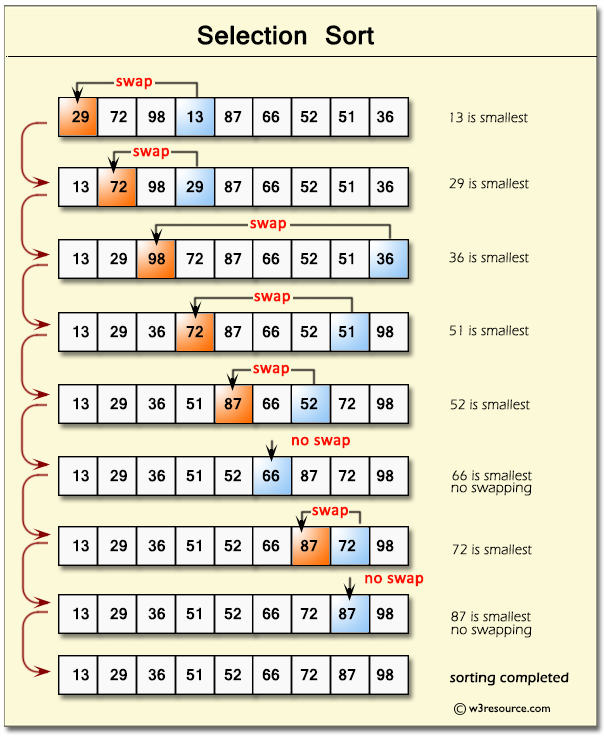
Selection sort merupakan teknik sorting yang paling sederhana, hal pertama yang akan dilakukan algoritma selection sort adalah menemukan elemen terkecil dalam array kita dan menukarna (swap) dengan elemen yang ada di posisi pertama, kemudian algoritma ini akan mengulangi hal yang sama lagi yaitu mencari elemen terkecil yang ada di dalam array dan kemudian menukarnya (swap) dengan elemen yang ada di posisi kedua (elemen di posisi pertama sudah berhasil di sorting). Proses ini akan terus beranjut sampai semua elemen yang ada di dalam array telah berhasil kita sorting.

Untuk mempermudah penjelasan mari kita lihat penggambaran dari prosesnya.

Hasil gambar untuk selection sort


  • Pertama kita mempunyai 9 elemen array yang masi tidak berurutan.
  • Selection sort akan mencari elemen terkecil dari array yang kita punya, dimana disini elemen terkecil adalah 13. Setelah mendapatan elemen terkecil, maka selection sort akan menukar elemen tersebut ke posisi pertama (29 & 13 ditukar).
  • Proses pertama berhasil, maka selection sort akan menukar posisi elemen 29 ke posisi kedua.
  • Proses tersebut akan dilakukan lagi dan lagi sampai semua elemen array berhasil di Sorting

Berikut implementasi dari selection sort menggunakan bahasa Visual Basic :


Hasil dari code yang diatas : 


Selesai


Sunday, 5 January 2020

Membuat Program Pencarian Data menggunakan Visual Basic

Selamat datang di blog ini. Kali ini saya akan membahas tentang apa itu Visual Basic. Microsoft Visual Basic (sering disingkat sebagai VB saja) merupakan sebuah bahasa pemrograman yang menawarkan Integrated Development Environment (IDE) visual untuk membuat program perangkat lunak berbasis sistem operasi Microsoft Windows dengan menggunakan model pemrograman (COM).
 
Visual Basic merupakan turunan bahasa pemrograman BASIC dan menawarkan pengembangan perangkat lunak komputer berbasis grafik dengan cepat. Beberapa bahasa skrip seperti Visual Basic for Applications (VBA) dan Visual Basic Scripting Edition (VBScript), mirip seperti halnya Visual Basic, tetapi cara kerjanya yang berbeda. Para programmer dapat membangun aplikasi dengan menggunakan komponen-komponen yang disediakan oleh Microsoft Visual Basic Program-program yang ditulis dengan Visual Basic juga dapat menggunakan Windows API, tetapi membutuhkan deklarasi fungsi luar tambahan.
 
Dalam pemrograman untuk bisnis, Visual Basic memiliki pangsa pasar yang sangat luas. Sebuah survey yang dilakukan pada tahun 2005 menunjukkan bahwa 62% pengembang perangkat lunak dilaporkan menggunakan berbagai bentuk Visual Basic, yang diikuti oleh C++, JavaScript, C#, dan Java. source: WikiPedia
 
Kali ini saya akan membahas tentang pencarian data menggunakan Visual Basic.  Program pencarian data pada program yang dibuat menggunakan bahasa visual basic sangatlah penting. Apalagi data yang telah dinputkan sangat banyak. Sehingga untuk mencari data dengan kriteria tertentu dengan maksud melakukan perubahan pada data tersebut sangat sulit jika dilakukan dengan cara manual.
 
Sebagai contoh jika kita mempunyai data yang banyak. Dan jika dilakukan dengan manual akan memakan waktu yang lama. Nah, disinilah pentingnya program ini untuk mempercepat pencarian data.
 
Nah, di artikel ini saya ingin menunjukkan langkah-langkahnya.
 
1. Buka Visual Studio > Buka tab "File" dan pilih "New Project" > Pilih Visul Basic > Pilih "Console Appication"


2. Masukkan script seperti dibawah ini.


3. Setelah memasukkan script diatas , klik "Start" > Dan masukkan nama dan harga barang .

 
4. Akan tampil daftar dan harga barang yang telah dimasukkan tadi > Setelah itu masukkan jumlah barang yang akan dibeli (saya memasukkan 4 barang)
 
 
5. Masukkan nama barang yang di inputkan tadi , dan akan muncul jumlah harga barang tersebut.


SELESAI
 
 
SEKIAN DARI SAYA
&
SELAMAT MENCOBA

 
Penulis : Fitra Aditya P
 

Sunday, 22 September 2019

How To Setup DNS


How To Setup Your Own Dns (Domain Name Server)

This is only a quick tutorial, there are literally hundreds of little tricks you can do with a DNS, but this

will get your basics up and running. I'm assuming you want to setup a windows DNS server, but the principals will work for most servers.

You will need..

1)  A domain name over which you have full control

2)  DNS server software(Windows server always comes with one of these)

3)  At least one fixed IP address, allthough two is highly desirable

4)  An idea of what services you want on your server

The first thing you need to do is create your new domain entry. In windows this is called a "Zone" and you

will have one for every domain name you have. Add your main domain in the forward lookup zone as a Primary zone, which will be in the format "Domainname.com", or .co.uk, or whatever, you shouldn't need any more details for this bit. Do *not* allow dynamic updates unless this is a local network DNS. Once it is created

you will have 2 entry's under your new domain, "SOA"(Or Start of Authority) and "NS"(Or Name server). If you

want a 100% compliant DNS then you should now follow the same process but adding a domain as a reverse lookup zone. Any changes you make to the forward lookup should have the "Update Reverse Lookup" option ticked if its available, if not you must update the reverse zone manually(This is very important).

Now edit the "NS" entry in your forward zone to "NS0.DomainName.Com", and set it to the relevant IP address. Add another (NS) record and set it to "NS1.DomainName.Com". If using 2 IP address, try to make NS0 the first IP. Now you need to configure the SOA entry in the forward lookup zone. The serial number should be changed to a date followed by a number in this format "YYYYMMDDnn", this is not required, but is advised by RIPE. The primary server will be the "NS0.domainname.com" entry you just made and the responsible person should be left for now. The refresh interval should be set somewhere between 1200 to 43200 seconds, the retry should be between 120-7200 seconds and the expires after should be around 2-4 weeks(I'll let you work out the seconds for that). The minimum TTL is quite important, and depending on what you are going to do with the domain, you might need to tweak this a bit. Typically a value between 1-3 hours should be used. Now go to your "Name server" settings in your SOA record(In windows this is a tab in the same window) remove the defaults, and add your two Name servers that you just setup. We will come back to the SOA record later, but for now we need to do some more stuff.

If you want a website, then your going to want the WWW. setting up. We will set it up as an "A" record, which means it is a separate top level record and will be populated separately from other entries. So add an "A" to your forward lookup zone and put the entry as "WWW", and set the IP address to wherever you want the website to be. This will be where the domain always goes, and it could be anywhere. Just make sure there is a web server waiting there for it. If you want FTP, then setup the same thing but with "FTP" in the entry. You will

now also have to setup "A" records for the NS0 and NS1 name servers that you added previously, just make them the same as WWW and FTP, but make sure the IP addresses match the ones used for setting up the "NS" records. Also add a blank "A" record, this will make sure that "domainname.com" works as well as "www.domainname.com".

Now you should decide whether or not you want to have mail on this domain. It is Hegel advisable that you set one up, even if it just to catch domain mail about abuse or potential problems that might occur. You can find plenty of high quality free mail servers out there, but I would recommend "Mail Enable", its free and provides everything you would want, but if you want webmail you do have to pay something extra for it. We will now configure the MX records. Add an "A" name for your mail server, you can add 2 if you want, but for simplicity I would advise staying with 1. We will call ours "Mail.domainname.com", and point it to one of our IP addresses. Now add an "MX" record in the Forward Lookup zone, giving it the full "A" record you just entered "Mail.domainname.com", and do not setup a host or child domain, just leave it blank.

This next step isn't needed, but is again highly recommended.

Now to finish the SOA you need to add two more records. A "RP" entry, which is a Responsible Person, and they will be the contact point for domain complaints and a "MB" entry, which is a mailbox entry. The "MB" should just be pointed to the mail server domain name "Mail.domainname.com", and the "RP" should have the host or domain set to the name of your mail box. So for this server it will be "Tony.Domainname.com", and the mailbox will be set to the "MB" record you just made. Don't worry about the RP address having no "@" in it, this is

the expected format for an "RP" entry. You will now have to go back into the SOA and change the responsible person to the new "RP" record you just made.

And thats it, your done! You can add as many "A" records as you like to point to other web servers, or a multitude of FTP sites. And you can add "CNAME" records to basically point to another name, usually an "A" record, like an alias.

Now before you switch your domain on, you need to check that the server is performing properly. So go to www.dnsreport.com, and run the report on your domain "domainname.com", and it will give you a very detailed report of any problems, and even a short description of how to fix the problems. If all is OK, then you are ready to go live. If your domain name is new, or not currently hosted anywhere then the first thing you should do is re-point the domain at your new server. You will typically do this with the provider who owns the domain, and it will be different with all hosts. But the basic settings are the same. You will be asked for at least 2 name servers and ip addresses to go with them. Just put in "NS0.domainname.com" and "NS1.domainname.com" and put in the correct IP addresses. Make sure you do not mess this up, as changes to your main NS servers could potentially take several days to straighten themselves out. Update these settings, and then sit back and wait. You can do a whois on the main DNS server of your domain provider to check if the settings have worked, but again this doesn't always work. For the big 3 domains(.com .net .org) you can do a whois on the network associates site to see the changes instantly. You can also track the progress of the domain changes by doing an NSLookup in dos, like this...

c:\nslookup ns0.domainname.com NS0.yourprovidersdns.com

That will give you the entries your domain provider has

c:\nslookup www.domainname.com ns0.domainname.com

And this will tell you if the changes for your domain have gone through to your ISPs DNS yet. It should give you back the IP address of your new DNS server.

You should always make sure your server is backed up, and that you refresh or update the DNS when you are making changes.

Bit Torrent Tutorials


Bit Torrent Tutorials

The first things you need to know about using Bit Torrent:
-- Bit Torrent is aimed at broadband users (or any connection better than dialup).
-- Sharing is highly appreciated, and sharing is what keeps bit torrent alive.
-- A bit torrent file (*.torrent) contains information about the piece structure of the download (more on this later)
-- The method of downloading is not your conventional type of download. Since downloads do not come in as one big chunk, you are able to download from many people at once, increasing your download speeds. There may be 100 "pieces" to a file, or 20,000+ pieces, all depending on what you're downloading. Pieces are usually small (under 200kb)
-- The speeds are based upon people sharing as they download, and seeders. Seeders are people who constantly share in order to keep torrents alive. Usually seeders are on fast connections (10mb or higher).

In this tutorial, I will be describing it all using a bit torrent client called Azureus. This client is used
to decode the .torrent files into a useable format to download from other peers. From here on out, I will refer to Bit Torrent as BT.

Which BT client you use, is purely up to you. I have tried them all, and my personal favorite is Azureus for many reasons. A big problem with most BT clients out there, is that they are extremely CPU intensive, usually
using 100% of your cpu power during the whole process. This is the number one reason I use Azureus. Another, is a recently released plug-in that enables you to browse all current files listed on suprnova.org (the #1
source for torrent downloads).

Before you use the plug-in, take a look at /http://www.suprnova.org, and browse the files. Hold your mouse over the links, and you'll notice every file ends in .torrent. This is the BT file extension. Usually,
.torrent files are very small, under 200kb. They contain a wealth of information about the file you want to download. A .torrent file can contain just 1 single file, or a a directory full of files and more directories.
But regardless, every download is split up into hundreds or thousands of pieces. The pieces make it much easier to download at higher speeds. Back to suprnova.org. Look at the columns:
Added | Name | Filesize | Seeds | DLs (and a few more which aren't very useful.) I'll break this down.
Added: Self explanitory, its the date the torrent was added.
Name: Also self explanitory.
Filesize: Duh
Seeds: This is how many people are strictly UPLOADING, or sharing. These people are the ones that keep
.torrent files alive. By "alive", I mean, if there's no one sharing the .torrent file, no one can download.
DLs: This is how many people currently downloading that particular torrent. They also help keep the torrent alive as they share while they download.

It's always best to download using a torrent that has a decent amount of seeders and downloaders, this way you can be assured there's a good chance your download will finish. The more the better.

Now that you should understand how torrent files work, and how to use them, on to Azureus! First, get JAVA! You need this to run Azureus, as java is what powers it. Get Java here:
Next, get Azureus at: /http://azureus.sourceforge.net

Next, get the Suprnovalister plugin from /http://s93732957.onlinehome.us/storage/suprnovalister.jar Install Java JRE before you do ANYTHING.
Install Azureus, and then in the installation folder, create 2 more folders. ./Plugins/suprnovalister (For example, if you installed Azureus to C:\PROGRAM FILES\AZUREUS, create C:\PROGRAM
FILES\AZUREUS\PLUGINS\SUPRNOVALISTER). Next, put the suprnovalister.jar file that you downloaded, in that folder.

Load up Azureus, and if you want, go through the settings and personalize it.

The tab labeled "My Torrents" is the section of Azureus you need the most often. That lists all your transfers, uploads and downloads. It shows every bit of information you could possibly want to know about torrents you download.

In the menu bar, go to View > Plugins > Suprnova Lister. This will open up a new tab in Azureus. Click on "Update Mirror". This will get a mirror site of suprnova.org containing all current torrent files available.
Once a mirror is grabbed, choose a category from the drop-down box to the left and click "Update". Wah-lah, all the available downloads appear in the main chart above. Just double click a download you want, and bang its starting to download. Open the "My Torrents" tab again to view and make sure your download started.

After your download has finished, be nice, and leave the torrent transferring. So people can get pieces of the file from you, just as you got pieces from other people.

Alternatively, if you don't want to use the plugin... you can just head to suprnova.org and download files to any folder. Then go to File > Open > .torrent File in Azureus.

This should about wrap it up for the Bit Torrent Tutorial. If you guys think of anything I should add, or whatnot, just let me know and I'll check into it.

Matrix Effect Using Notepad


        I had previously posted about Matrix effect using Notepad . But this is more advance and it looks more realistic then the previous one. So open up your notepad and get started.
How To Create Matrix File ?

  1. Open Notepad and copy below code.

@echo off
 color 0A
 :A

echo b r E w e 4 e T r 8 M e F r a c h a S t 3 D a C r a s p e s T e 4 h 2 w r e G 2 
ping -w .9 >nul
 echo R E 9 8 8 R a t r e g 6 n u m A b R E X e Y A T u C 7 a D R a c r u C e B E p e 
ping -w .9 >nul
 echo c E B E s A d R u B R 3 H e R u D 7 g u d U 7 T a b u T 5 e p E 2 a v e 6 8 a Z 
ping -w .9 >nul
 echo n u r A X a j a s t a 9 h a 6 e h e G a s u t r a t r A y a f E q u 8 u b R u d 
ping -w .9 >nul
 echo k u v e 4 E 6 3 e t r a d r e f e y e q e 6 U H e z U b r u R a s 2 4 3 r A N a 
ping -w .9 >nul
 echo v u P R a b R u c e d U s w a h a c r a t h U 7 r a h u t u h u V e 7 U k u S a 
ping -w .9 >nul
 echo T e D r e 8 A p r a d a b u f U c u c E h E t 7 c r 5 s P a f r e t h u t 9 u t  
ping -w .9 >nul
 echo b R u G e p a R e s a P H e P a 2 U d 4 P r e F A b a t h a t h U s w a d R U d 
ping -w .9 >nul
 echo v U Y a C R e T R 9 k u b e D r a T 6 u j e 5 2 4 e B a f 2 u b 5 w A p a y U Y 
ping -w .9 >nul
 echo b r E w e 4 e n r 8 M e F r a c h a S t 3 D a C r a s p e s T e 4 a 2 w r e G 2 
ping -w .9 >nul
 echo k u v e 4 E 6 3 e t r a d r e f e y e q e 6 U H e z U b r u R a s 2 4 3 r A N a 
ping -w .9 >nul
 echo v u P R a b s u c e d U s w a 3 a c r a t h U 7 r a k u t u h u V e 7 U k u S a 
ping -w .9 >nul
echo n u r A X a j a s t a 9 h a 6 e h e G a s u t r a t r A y a f E q u 8 u b u u d 
ping -w .9 >nul
goto A

 2. Save the file as matrix.bat  (.bat is must) 


3. Done enjoy !

How to download Torrent file with IDM


1. First of all , you have to download the torrent file(.torrent) which you want to download...!

2. Then just go to the website http://www.torcache.net/ OR GO TO www.zbigz.com and upload the torrent file that you have just downloaded and click on the cache! button..,,!

3. This will give you a new torrent file . You just have to copy the link of the new torrent file from the opened window..,,..!

4. Then go to the website http://www.torrific.com/ and create an account there(in case you don’t have) and login to your account. Then paste the address of the new torrent obtained in step 3 and click on Get button.,.,,...!

5. Now you will get the list of available files present in that torrent file. Then click on the initiate bittorrent transmission button. This will give the full option to download the file. Just click on any link and you can see the download manager-IDM popping out for downloading the file.,.,.!!

Thursday, 6 December 2018

A Web Standards Checklist, How to make a proper website


A Web Standards Checklist, How to make a proper website

The term web standards can mean different things to different people. For some, it is 'table-free sites', for others it is 'using valid code'. However, web standards are much broader than that. A site built to web

standards should adhere to standards (HTML, XHTML, XML, CSS, XSLT, DOM, MathML, SVG etc) and pursue best practices (valid code, accessible code, semantically correct code, user-friendly URLs etc).

In other words, a site built to web standards should ideally be lean, clean, CSS-based, accessible, usable and search engine friendly.

About the checklist

This is not an uber-checklist. There are probably many items that could be added. More importantly, it should not be seen as a list of items that must be addressed on every site that you develop. It is simply a guide that can be used:

*  to show the breadth of web standards

*  as a handy tool for developers during the production phase of websites

*  as an aid for developers who are interested in moving towards web standards

The checklist

1.Quality of code


1.  Does the site use a correct Doctype?

2.  Does the site use a Character set?

3.  Does the site use Valid (X)HTML?

4.  Does the site use Valid CSS?

5.  Does the site use any CSS hacks?

6.  Does the site use unnecessary classes or ids?

7.  Is the code well structured?

8.  Does the site have any broken links?

9.  How does the site perform in terms of speed/page size?

10.  Does the site have JavaScript errors?

2. Degree of separation between content and presentation


1.  Does the site use CSS for all presentation aspects (fonts, colour, padding, borders etc)?

2.  Are all decorative images in the CSS, or do they appear in the (X)HTML?

3.  Accessibility for users


1.  Are "alt" attributes used for all descriptive images?

2.  Does the site use relative units rather than absolute units for text size?

3.  Do any aspects of the layout break if font size is increased?

4.  Does the site use visible skip menus?

5.  Does the site use accessible forms?

6.  Does the site use accessible tables?

7.  Is there sufficient colour brightness/contrasts?

8.  Is colour alone used for critical information?
9.  Is there delayed responsiveness for dropdown menus (for users with reduced motor skills)?

10.  Are all links descriptive (for blind users)?

4. Accessibility for devices


1.  Does the site work acceptably across modern and older browsers?

2.  Is the content accessible with CSS switched off or not supported?

3.  Is the content accessible with images switched off or not supported?

4.  Does the site work in text browsers such as Lynx?

5.  Does the site work well when printed?

6.  Does the site work well in Hand Held devices?

7.  Does the site include detailed metadata?

8.  Does the site work well in a range of browser window sizes?

5. Basic Usability


1.  Is there a clear visual hierarchy?

2.  Are heading levels easy to distinguish?

3.  Does the site have easy to understand navigation?

4.  Does the site use consistent navigation?

5.  Are links underlined?

6.  Does the site use consistent and appropriate language?

7.  Do you have a sitemap page and contact page? Are they easy to find?

8.  For large sites, is there a search tool?

9.  Is there a link to the home page on every page in the site?

10.  Are visited links clearly defined with a unique colour?

6. Site management


1.  Does the site have a meaningful and helpful 404 error page that works from any depth in the site?

2.  Does the site use friendly URLs?

3.  Do your URLs work without "www"?

4.  Does the site have a favicon?

1. Quality of code

1.1 Does the site use a correct Doctype?

A doctype (short for 'document type declaration') informs the validator which version of (X)HTML you're using,

and must appear at the very top of every web page. Doctypes are a key component of compliant web pages: your

markup and CSS won't validate without them.

CODE

http://www.alistapart.com/articles/doctype/


More:

CODE

http://www.w3.org/QA/2002/04/valid-dtd-list.html

CODE

http://css.maxdesign.com.au/listamatic/about-boxmodel.htm

CODE

http://gutfeldt.ch/matthias/articles/doctypeswitch.html


1.2 Does the site use a Character set?

If a user agent (eg. a browser) is unable to detect the character encoding used in a Web document, the user

may be presented with unreadable text. This information is particularly important for those maintaining and

extending a multilingual site, but declaring the character encoding of the document is important for anyone

producing XHTML/HTML or CSS.

CODE

http://www.w3.org/International/tutorials/tutorial-char-enc/


More:

CODE

http://www.w3.org/International/O-charset.html


1.3 Does the site use Valid (X)HTML?

Valid code will render faster than code with errors. Valid code will render better than invalid code. Browsers

are becoming more standards compliant, and it is becoming increasingly necessary to write valid and standards

compliant HTML.

CODE

http://www.maxdesign.com.au/presentation/sit2003/06.htm


More:

CODE

http://validator.w3.org/


1.4 Does the site use Valid CSS?

You need to make sure that there aren't any errors in either your HTML or your CSS, since mistakes in either

place can result in botched document appearance.

CODE

http://www.meyerweb.com/eric/articles/webrev/199904.html


More:

CODE

http://jigsaw.w3.org/css-validator/


1.5 Does the site use any CSS hacks?

Basically, hacks come down to personal choice, the amount of knowledge you have of workarounds, the specific

design you are trying to achieve.

CODE

http://www.mail-archive.com/wsg@webstandardsgroup.org/msg05823.html


More:

CODE

http://css-discuss.incutio.com/?page=CssHack

CODE

http://css-discuss.incutio.com/?page=ToHackOrNotToHack

CODE

http://centricle.com/ref/css/filters/

1.6 Does the site use unnecessary classes or ids?

I've noticed that developers learning new skills often end up with good CSS but poor XHTML. Specifically, the

HTML code tends to be full of unnecessary divs and ids. This results in fairly meaningless HTML and bloated

style sheets.

CODE

http://www.clagnut.com/blog/228/


1.7 Is the code well structured?

Semantically correct markup uses html elements for their given purpose. Well structured HTML has semantic

meaning for a wide range of user agents (browsers without style sheets, text browsers, PDAs, search engines

etc.)

CODE

http://www.maxdesign.com.au/presentation/benefits/index04.htm


More:

CODE

http://www.w3.org/2003/12/semantic-extractor.html


1.8 Does the site have any broken links?

Broken links can frustrate users and potentially drive customers away. Broken links can also keep search engines from properly indexing your site.

More:

CODE

http://validator.w3.org/checklink


1.9 How does the site perform in terms of speed/page size?

Don't make me wait... That's the message users give us in survey after survey. Even broadband users can suffer

the slow-loading blues.

CODE

http://www.websiteoptimization.com/speed/


1.10 Does the site have JavaScript errors?

Internet Explore for Windows allows you to turn on a debugger that will pop up a new window and let you know there are javascript errors on your site. This is available under 'Internet Options' on the Advanced tab. Uncheck 'Disable script debugging'.

2. Degree of separation between content and presentation

2.1 Does the site use CSS for all presentation aspects (fonts, colour, padding, borders etc)? Use style sheets to control layout and presentation. CODE

http://www.w3.org/TR/WCAG10/wai-pageauth.html#tech-style-sheets


2.2 Are all decorative images in the CSS, or do they appear in the (X)HTML?

The aim for web developers is to remove all presentation from the html code, leaving it clean and semantically correct.

CODE

http://www.maxdesign.com.au/presentation/benefits/index07.htm


3. Accessibility for users

3.1 Are "alt" attributes used for all descriptive images?

Provide a text equivalent for every non-text element

CODE

http://www.w3.org/TR/WCAG10/wai-pageauth.html#tech-text-equivalent


3.2 Does the site use relative units rather than absolute units for text size?

Use relative rather than absolute units in markup language attribute values and style sheet property values'.

CODE

http://www.w3.org/TR/WCAG10/wai-pageauth.html#tech-relative-units


More:

CODE

http://www.w3.org/TR/WCAG10/wai-pageauth.html#tech-relative-units

CODE

http://www.clagnut.com/blog/348/


3.3 Do any aspects of the layout break if font size is increased?

Try this simple test. Look at your website in a browser that supports easy incrementation of font size. Now increase your browser's font size. And again. And again... Look at your site. Does the page layout still hold together? It is dangerous for developers to assume that everyone browses using default font sizes.


3.4 Does the site use visible skip menus?
 A method shall be provided that permits users to skip repetitive navigation links.

CODE

http://www.section508.gov/index.cfm?FuseAction=Content&ID=12


Group related links, identify the group (for user agents), and, until user agents do so, provide a way to

bypass the group.

CODE

http://www.w3.org/TR/WCAG10-TECHS/#tech-group-links


...blind visitors are not the only ones inconvenienced by too many links in a navigation area. Recall that a mobility-impaired person with poor adaptive technology might be stuck tabbing through that morass. CODE

http://joeclark.org/book/sashay/serialization/Chapter08.html#h4-2020


More:

CODE

http://www.niehs.nih.gov/websmith/508/o.htm

3.5 Does the site use accessible forms?

Forms aren't the easiest of things to use for people with disabilities. Navigating around a page with written content is one thing, hopping between form fields and inputting information is another. CODE

http://www.htmldog.com/guides/htmladvanced/forms/


More:

CODE

http://www.webstandards.org/learn/tutorials/accessible-forms/01-accessible-forms.html

CODE

http://www.accessify.com/tools-and-wizards/accessible-form-builder.asp

CODE

http://accessify.com/tutorials/better-accessible-forms.asp


3.6 Does the site use accessible tables?

For data tables, identify row and column headers... For data tables that have two or more logical levels of row or column headers, use markup to associate data cells and header cells. CODE

http://www.w3.org/TR/WCAG10/wai-pageauth.html#tech-table-headers


More:

CODE

http://www.bcc.ctc.edu/webpublishing/ada/resources/tables.asp

CODE

http://www.accessify.com/tools-and-wizards/accessible-table-builder_step1.asp

CODE

http://www.webaim.org/techniques/tables/


3.7 Is there sufficient colour brightness/contrasts?

Ensure that foreground and background colour combinations provide sufficient contrast when viewed by someone

having colour deficits.

CODE

http://www.w3.org/TR/WCAG10/wai-pageauth.html#tech-colour-contrast


More:

CODE

http://www.juicystudio.com/services/colourcontrast.asp


3.8 Is colour alone used for critical information?

Ensure that all information conveyed with colour is also available without colour, for example from context or

markup.

CODE

http://www.w3.org/TR/WCAG10/wai-pageauth.html#tech-colour-convey

There are basically three types of colour deficiency; Deuteranope (a form of red/green colour deficit), Protanope (another form of red/green colour deficit) and Tritanope (a blue/yellow deficit- very rare).

More:

CODE

http://colourfilter.wickline.org/

CODE

http://www.toledo-bend.com/colourblind/Ishihara.html

CODE

http://www.vischeck.com/vischeck/vischeckURL.php


3.9 Is there delayed responsiveness for dropdown menus?

Users with reduced motor skills may find dropdown menus hard to use if responsiveness is set too fast.

3.10 Are all links descriptive?

Link text should be meaningful enough to make sense when read out of context - either on its own or as part of

a sequence of links. Link text should also be terse.

CODE

http://www.w3.org/TR/WCAG10/wai-pageauth.html#tech-meaningful-links


4. Accessibility for devices.

4.1 Does the site work acceptably across modern and older browsers?

Before starting to build a CSS-based layout, you should decide which browsers to support and to what level you

intend to support them.

CODE

http://www.maxdesign.com.au/presentation/process/index_step01.cfm


4.2 Is the content accessible with CSS switched off or not supported?

Some people may visit your site with either a browser that does not support CSS or a browser with CSS switched off. In content is structured well, this will not be an issue.

4.3 Is the content accessible with images switched off or not supported?

Some people browse websites with images switched off - especially people on very slow connections. Content should still be accessible for these people.

4.4 Does the site work in text browsers such as Lynx?

This is like a combination of images and CSS switched off. A text-based browser will rely on well structured content to provide meaning.

More:

CODE

http://www.delorie.com/web/lynxview


4.5 Does the site work well when printed?

You can take any (X)HTML document and simply style it for print, without having to touch the markup.

CODE

http://www.alistapart.com/articles/goingtoprint/


More:

CODE

http://www.d.umn.edu/itss/support/Training/Online/webdesign/css.html#print


4.6 Does the site work well in Hand Held devices?

This is a hard one to deal with until hand held devices consistently support their correct media type.

However, some layouts work better in current hand-held devices. The importance of supporting hand held devices will depend on target audiences.

4.7 Does the site include detailed metadata?

Metadata is machine understandable information for the web

CODE

http://www.w3.org/Metadata/


Metadata is structured information that is created specifically to describe another resource. In other words, metadata is 'data about data'.


4.8 Does the site work well in a range of browser window sizes?

It is a common assumption amongst developers that average screen sizes are increasing. Some developers assume that the average screen size is now 1024px wide. But what about users with smaller screens and users with hand held devices? Are they part of your target audience and are they being disadvantaged?

5. Basic Usability

5.1 Is there a clear visual hierarchy?

Organise and prioritise the contents of a page by using size, prominence and content relationships.

CODE

http://www.great-web-design-tips.com/web-site-design/165.html


5.2 Are heading levels easy to distinguish?

Use header elements to convey document structure and use them according to specification.

CODE

http://www.w3.org/TR/WCAG10/wai-pageauth.html#tech-logical-headings


5.3 Is the site's navigation easy to understand?

Your navigation system should give your visitor a clue as to what page of the site they are currently on and

where they can go next.

CODE

http://www.1stsitefree.com/design_nav.htm


5.4 Is the site's navigation consistent?

If each page on your site has a consistent style of presentation, visitors will find it easier to navigate

between pages and find information

CODE

http://www.juicystudio.com/tutorial/accessibility/navigation.asp


5.5 Does the site use consistent and appropriate language?

The use of clear and simple language promotes effective communication. Trying to come across as articulate can

be as difficult to read as poorly written grammar, especially if the language used isn't the visitor's primary

language.

CODE

http://www.juicystudio.com/tutorial/accessibility/clear.asp


5.6 Does the site have a sitemap page and contact page? Are they easy to find?

Most site maps fail to convey multiple levels of the site's information architecture. In usability tests,

users often overlook site maps or can't find them. Complexity is also a problem: a map should be a map, not a

navigational challenge of its own.

CODE

http://www.useit.com/alertbox/20020106.html


5.7 For large sites, is there a search tool?

While search tools are not needed on smaller sites, and some people will not ever use them, site-specific search tools allow users a choice of navigation options.

5.8 Is there a link to the home page on every page in the site?

Some users like to go back to a site's home page after navigating to content within a site. The home page becomes a base camp for these users, allowing them to regroup before exploring new content.

5.9 Are links underlined?

To maximise the perceived affordance of clickability, colour and underline the link text. Users shouldn't have to guess or scrub the page to find out where they can click. CODE

http://www.useit.com/alertbox/20040510.html


5.10 Are visited links clearly defined?

Most important, knowing which pages they've already visited frees users from unintentionally revisiting the

same pages over and over again.

CODE

http://www.useit.com/alertbox/20040503.html


6. Site management

6.1 Does the site have a meaningful and helpful 404 error page that works from any depth in the site?

You've requested a page - either by typing a URL directly into the address bar or clicking on an out-of-date

link and you've found yourself in the middle of cyberspace nowhere. A user-friendly website will give you a

helping hand while many others will simply do nothing, relying on the browser's built-in ability to explain

what the problem is.

CODE

http://www.alistapart.com/articles/perfect404/


6.2 Does the site use friendly URLs?

Most search engines (with a few exceptions - namely Google) will not index any pages that have a question mark

or other character (like an ampersand or equals sign) in the URL... what good is a site if no one can find it?

CODE

http://www.sitepoint.com/article/search-engine-friendly-urls


One of the worst elements of the web from a user interface standpoint is the URL. However, if they're short, logical, and self-correcting, URLs can be acceptably usable CODE

http://www.merges.net/theory/20010305.html


More:

CODE

http://www.sitepoint.com/article/search-engine-friendly-urls

CODE

http://www.websitegoodies.com/article/32

CODE

http://www.merges.net/theory/20010305.html


6.3 Does the site's URL work without "www"?

While this is not critical, and in some cases is not even possible, it is always good to give people the choice of both options. If a user types your domain name without the www and gets no site, this could disadvantage both the user and you.


6.4 Does the site have a favicon?
A Favicon is a multi-resolution image included on nearly all professionally developed sites. The Favicon

allows the webmaster to further promote their site, and to create a more customized appearance within a

visitor's browser.

CODE

http://www.favicon.com/


Favicons are definitely not critical. However, if they are not present, they can cause 404 errors in your logs (site statistics). Browsers like IE will request them from the server when a site is bookmarked. If a favicon isn't available, a 404 error may be generated. Therefore, having a favicon could cut down on favicon specific 404 errors. The same is true of a 'robots.txt' file.


Sorting Dengan Metode Bubble Sort Mengunakan Visual Basic

Bubble Sort merupakan salah satu jenis sorting. Diberikan nama "bubble" karena konsep dari algoritmanya diibaratkan sepert gelemb...